Open the Google Calendar app, switch to Week view, put your fixed plans in as events and your to-dos in as tasks, and keep one short time each week to plan the next one. Below are the steps, the places where a phone makes it harder, and what helps.
How do I plan my week in Google Calendar on Android?
- Switch to Week view. In the top left, tap the menu and choose Week. If seven days feel cramped, 3 Day is in the same menu (Google Calendar Help).
- Put in what's fixed. Appointments, classes, pick-ups: tap an empty time and add them as events (same page).
- Add your to-dos as tasks. Tap an empty slot, then tap Task. A task needs a date to show on your calendar, and its deadline appears in the "All day" section (Google Calendar Help).
- Set what comes back to repeat. When you pick a task's date and time, tap Repeat. Tasks with subtasks can't repeat (same page).
- Keep a weekly planning time. Add a repeating event, for example 20 minutes on Sunday evening, to look at the week ahead: what's fixed, what's left from last week, and what matters most.
Google's steps checked on 13 October 2026. Google changes Calendar often.
Where does Google Calendar fall short as a weekly planner on a phone?
- Seven days on a small screen. Week view fits the whole week, so each day is a narrow column and longer titles get cut short. 3 Day view is easier to read but no longer shows the week.
- Unfinished tasks stay behind. A task you don't finish keeps its date and shows as overdue. Moving it means changing its date yourself, one task at a time. More in Do Google Tasks roll over to the next day?
- No week on your home screen. Google Calendar's Android widgets are a schedule list and a month view (Google Calendar Help). See Is there a Google Calendar week widget for Android?
A weekly planner that works with your Google Calendar
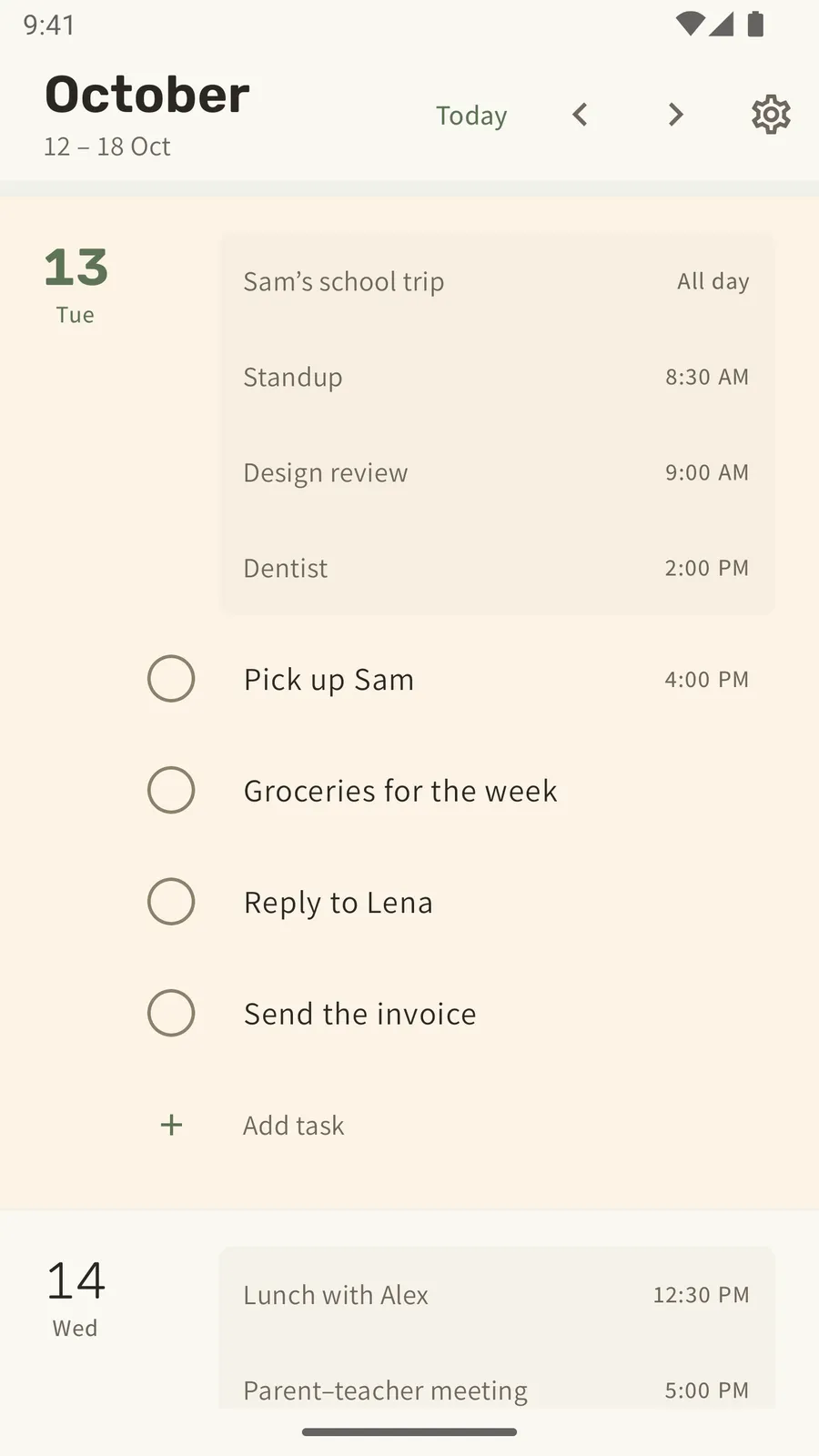
Tend is the weekly planner I make for Android. It reads your Google Calendar and lays out the week one day under the other, each day with its events and your tasks on the same page. Tap "+" on a day and write; press Enter and the next line is ready. Repeating tasks come back every week, or every 2, 3 or 4 weeks, on the days you pick. A task you don't finish moves to today on its own.
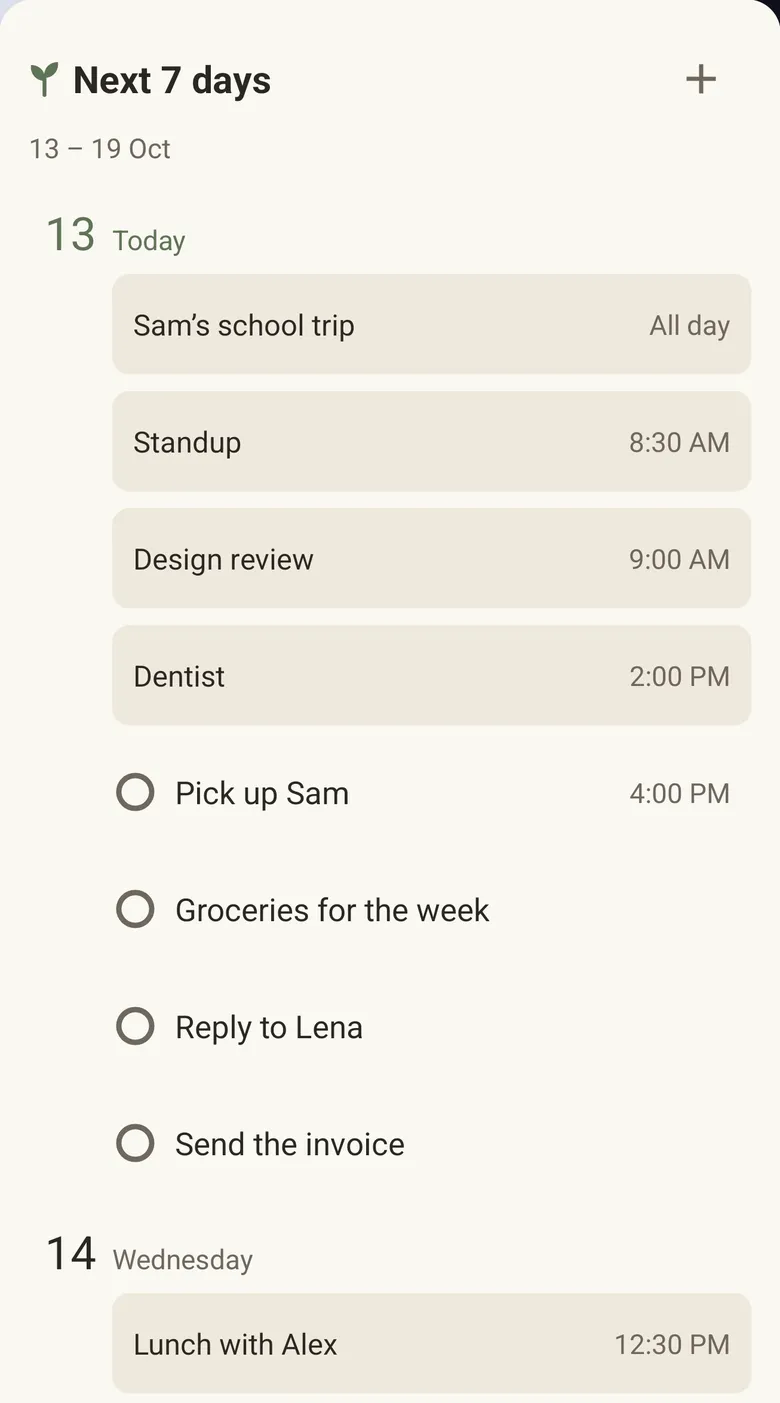
And the same week on your home screen, with the Week widget:
To be clear: Tend keeps its own to-do list. It doesn't read or change Google Tasks, and it only reads your calendar. It never edits it.
Why I plan my week
My life felt like chaos, and nothing was moving. My therapist told me to plan my week, so the things I wanted would start to move. I looked for something simple: a place for my tasks, where whatever I didn't finish rolls to the next day, with no shame and not too much noise. The planners I tried were bloated and expensive. So I built Tend.
 Ezra Halevi
What else do people ask about planning a week in Google Calendar?
Does Google Calendar have a week view on Android?
Yes. In the Google Calendar app, tap the menu in the top left and choose Week. There are also Day, 3 Day, Month and Schedule views.
Can I add to-dos to Google Calendar on my phone?
Yes, as tasks. Tap an empty slot on your calendar, then tap Task. A task needs a date to show on your calendar, and its deadline appears in the "All day" section.
Do unfinished tasks move to the next day in Google Calendar?
No. A task you don't finish keeps its date and becomes overdue. You move it by changing its date yourself.
Can I see my week on my home screen?
Google Calendar's Android widgets are a schedule list and a month view, with no week widget. A week widget from another app, such as Tend's Week widget, shows the next 7 days.
Does Tend change my Google Calendar?
No. Tend reads your Google Calendar events so it can show them beside your tasks. It never adds, edits or deletes events, and it doesn't read or change Google Tasks.